
Pi Day for All Learners! 🥧📚✨
Pi Day is the perfect time to celebrate math, but let’s make sure everyone can enjoy it! Here are a few tips to make Pi Day more accessible for ALL learners, no matter their needs.
Showing posts with label Accessibility. Show all posts
Showing posts with label Accessibility. Show all posts
Friday, March 14, 2025
Making Pi Day Accessible


Monday, November 25, 2024

Thursday, May 20, 2021
GAAD: Apple Software Updates Designed for People with Disabilities
Global Accessibility Awareness Day, GAAD, is a day dedicated to focusing on digital access and inclusion for the more than one billion people with disabilities and impairments. It is celebrated annually and highlights that accessibility is a fundamental right. In line with GAAD, Apple released a preview of several software updates specifically designed for people with disabilities such as SignTime which allows Apple customers and users to remotely access on-demand Sign Language interpreters or an update to the Apple Watch which will allow users to navigate Assistive Touch. Other updates include eye-tracking support for the iPad, exploring images with VoiceOver, new bi-directional hearing aids which enable those who are deaf or hard of hearing to have hands-free phone and FaceTime conversations, the ability to import audiograms to customize the settings within Headphone Accommodations, new background sounds to help minimize distractions, sound actions for Switch Control, more customizable Display and Text Size settings for colorblindness or visual impairments and New Memoji customizations to widen their representation of individuals with varying needs.
To read more about these updates, click the link below to access the full article.

To read more about these updates, click the link below to access the full article.

Monday, July 27, 2020

Wednesday, September 4, 2019
Webinar Wednesday: 5 Ways to Be An A-1-1-Y Hero
 Is accessibility ("A11Y") for learners with disabilities among the criteria you, your school, district, or state use when selecting educational materials and technologies? Then be sure to vote for Luis Perez and Cynthia Curry's #A11Y Hero proposal on SXSQ PanelPlicker. By doing so you'll gain the opportunity to learn five guidelines that should be a part of any procurement process and leave with your first action step toward making learning more accessible. You'll be an A11Y hero!
Source: PanelPlicker
Thursday, May 17, 2018
Global Accessibility Awareness Day (GAAD) 2018
 Today marks the seventh Global Accessibility Awareness Day (GAAD). As stated on the GAAD website, "The purpose of the day is to get everyone talking, thinking and learning about digital (web, software, mobile, etc.) access/inclusion and people with different disabilities."
 In honor of Global Accessibility Awareness Day (GAAD) and to help create more inclusive school and classroom environments, all educators should be encouraged to explore Microsoft's Educator Community training course, brought to you by Microsoft Innovative Educators who work in Special Education.
Within the training course are a plethora of technologies and resources available to help create more accessible and inclusive learning environments. With a few easy clicks, you can access quality content, efficiently and independently, without having to ask for it. Through the link below you will find 10 ways every educator can make classrooms and learning more accessible for all students with Office 365.
10 Tips to Make Your Classroom More Accessible
Additionally, the infographic below highlights ways students and teachers can provide options to reach those learning through a variety of modalities. Click on the image to download.
Tuesday, March 27, 2018
Web 2.0 Tools Accessibility Report Cards
 In the 21st century classrooms, Web 2.0 tools are transforming the way students are supported and instruction is delivered. As it becomes more common practice for schools to incorporate technology into their classrooms, teachers will strive to select technology tools that enhance their instruction. Web 2.0 Tools are online software programs that allow users to do a number of different things. They can be used to teach curriculum content, store data, create/edit video, edit photos, collaborate and so much more. These programs are often free and are used by teachers, students, and sometimes parents, both in and out of the classroom, on a pretty regular basis.
So where does this leave our students with learning differences? The answer should be, right beside their peers. It is important that when selecting the tools to be used in your classroom, to consider what accessibility features are available as well. For those unsure where to begin looking, Wendy Torres' eBook, Web 2.0 Tools Accessibility: 6 Report Cards for Six Web 2.0 Tools, is the perfect place to get started. The eBook provides a brief overview and highlights the accessibility features of 6 popular Web 2.0 Tools, including Book Creator, Flipgrid, My Simple Show, Sugarcane Games, Wakelet and Sutori. Click on the image below to view the eBook!

Tuesday, January 2, 2018
Digital Does Not Equal Accessible!
 Digital Does Not Equal Accessible is an article written by Hillary Goldwaith-Fowles, PhD, ATP, which focuses on an important area of discussion that arises in the field of assistive technology. It is often a misconception that because materials are presented digitally this would also imply that they are accessible for those who need materials to be presented in such a way. With the help of her Twitter PLN, Dr. Fowles helps to break down how digital does not always equate to accessible, and how we as professionals, parents and even students can help to ensure that materials are accessible to those who require them to be. Read the article featured below or click here to access Hillary's website to read this article and others she has shared.
Interested in learning more? Be sure to grab a copy of Hillary's book One Size Does Not Fit All: Equity, Access, PD and UDL.

We’ve recently refreshed the copiers in our district. You’d think this wasn’t a big deal, however, the ability to scan in color is pretty exciting (I know, it doesn’t take much to bring joy to my world)! This opens up a whole new level of possibility for teachers who, with the best of intentions, want to ensure that students have access to content on a tablet or laptop.
This is a great idea. Paperless classrooms are now a “thing”, and that’s great for the trees and the environment! Simply scanning documents into a copier and posting them in Google Classroom DOES make them digital. It DOES lend itself to a paperless classroom. However, what it does NOT do is make that media ACCESSIBLE.
What does accessible mean? When we are talking about content that is on a computer phone, or tablet, we mean that ANY user can use tools to access the content (i.e. screen reader, text to speech, magnification software, etc). The content literally comes to life for a user with (or without) disabilities.
I posed this question a while ago on “the Twitter”, as I know I’m not the first person to talk about this concept, or face this dilemma in their setting. In reaching out to my PLN (Professional Learning Network, I received some wonderful responses! Here’s what they had to say when I posted the graphic “Digital does not Equal Accessible” and asked for their thoughts.

In other words- ALL means ALL.
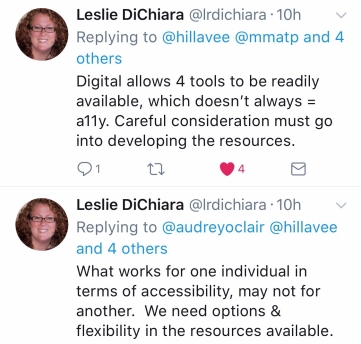
In other words, intentional use, with end user (i.e. students) as focus.

In other words, don’t be afraid to explore and allow students to explore as well!

In other words- Dear Developers, please listen to us as you continue to develop tools to support ALL learners.

There are no other words here- this about sums up this whole blog post!
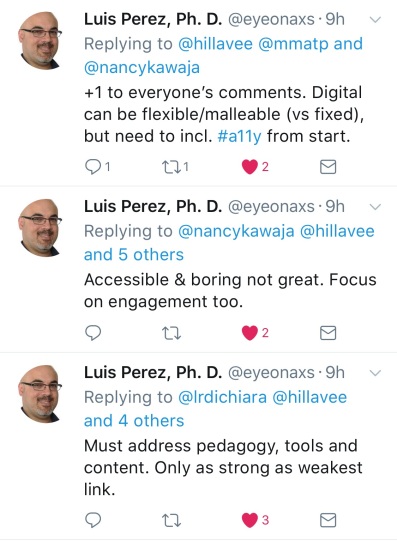
In other words, forethought, not afterthought.

In other words, leverage UDL.
I also took the time to email John Brandt from MaineCite and Cynthia Curry from CAST and the National Center on Accessible Educational Materials (AEM Center) on the subject, as their primary roles in their work center around accessibility.
John graciously shared some resources, which help in building understanding around accessibility as a forethought, not an afterthought:
Cynthia Curry, in the most eloquent of ways, summed up how to think about accessibility rather nicely:
“Materials can be born print and require retrofitting
Materials can be born digital but difficult or impossible to retrofit
Materials can be born accessible and thereby readily usable”
I hope this post and resources are helpful to you in developing deeper understanding of accessibility. Many thanks to John Brandt, Cynthia Curry, Leslie DiChiara, Nancy Kawaja, Mike Marotta, Cheryl Oakes, Audrey O’Clair, and Luis Perez for their time, expertise, and invaluable contributions.
” Do the best you can until you know better. Then when you know better, do better”
– Maya Angelou*.
*Cynthia Curry used this quote in a presentation at ACTEM in October. I love it.
Source: TechnoBytes Blog
Permission to share this article directly on the Where It's AT blog was granted by the author of the article.
Tuesday, February 7, 2017
An Accessible Life: A Short Film by NCATP
"Assistive technology users and their life experiences are represented in the contributions of the NC Assistive Technology Program consumers depicted in this film. This work focuses not only on their challenges, but highlights their success and the role that assistive technology has played in helping them achieve their goals. Additionally, you will see contributions from the NCATP assistive technologists and family members. These people have worked with and supported these users becoming their allies as they embarked on a new way to attend school, interact with others, participate in meaningful work, express their spirit, share their knowledge and enjoy the narrative of struggle and victory that their lives have become." -NCATP website
I hope you enjoy watching and are as inspired by this as I was.
Thursday, January 19, 2017
ATIA 2017 - AT Bootcamp Highlights (Day 2)

The second day of the AT Bootcamp, facilitated by Mike Cole and Kelly Fonner, was filled with a tremendous amount of information regarding accessibility, AT tools to support devices and tools to support language, writing and mathematics. Today was jam packed with resources and information to support the successful selection and implementation of AT and AAC. The information below only touches the surface of some of the highlights from today's session. Again, my hope is you find this as helpful as I did...

2. Switch Access: For those individuals with limited or no usage of their hands switch access can can provide opportunities for independence and communication which normally would not be possible. Additionally, switch access is often utilized by people with limited mobility, motor impairments or degenerative diseases where dexterity is impacted to allow interaction with the touch screen. During AT Bootcamp, we were presented with both proximity and mechanical switches and discussions focused on the selection process when switch access is being considered.
 A checklist was shared to determine ideal control sites and placement for switches as well as some helpful tips for the implementation of switches.


With so much to consider for switch access, the greatest take away I had was to always "assume competence". By doing so, the process for determining the right tools to provide access. For more information about switch access visit the Better Living Through Technology website.
3. AAC: Mike and Kelly provided an in-depth look at the expansive topic of AAC with the session covering areas from AAC models & assessment, low to high tech tools, a comparison of dedicated devices compared to applications, AAC considerations, examples of symbols sets and implementation strategies. Some of the information discussed can be found in the slide images below:


The information shared helped to simplify a normally overwhelming area and even delved into debunking many myths revolving around AAC. To read about AAC myths visit Carole Zangari'sAAC Myth Buster Wrap Up or Tobii Dynavox's AAC Myths Revealed
For those looking for an excellent resource to determine goals for initial and re-assessments regarding AAC, definitely take a peek at TobiiDynavox's DAGG-2 (Dynamic AAC Goals Guide 2)
4. Academics: Other conversations focused on literacy, writing and mathematics. With so many resources to share I am listing a few standout key applications and software covered during the bootcamp:


3. AAC: Mike and Kelly provided an in-depth look at the expansive topic of AAC with the session covering areas from AAC models & assessment, low to high tech tools, a comparison of dedicated devices compared to applications, AAC considerations, examples of symbols sets and implementation strategies. Some of the information discussed can be found in the slide images below:


The information shared helped to simplify a normally overwhelming area and even delved into debunking many myths revolving around AAC. To read about AAC myths visit Carole Zangari'sAAC Myth Buster Wrap Up or Tobii Dynavox's AAC Myths Revealed
For those looking for an excellent resource to determine goals for initial and re-assessments regarding AAC, definitely take a peek at TobiiDynavox's DAGG-2 (Dynamic AAC Goals Guide 2)
4. Academics: Other conversations focused on literacy, writing and mathematics. With so many resources to share I am listing a few standout key applications and software covered during the bootcamp:
- Ginger
- Co:Writer
- Draft Builder
- Read & Write
- Webnotes
- Draft Builder
- Clicker (Connect, Sentences, Docs)
- Snap & Read
- Grammarly
Thursday, December 1, 2016
Apple Showcases Accessibility Features
Apple's redesigned accessibility webpage launched a few weeks ago and is showcasing how essential assistive technology is for people with disabilities. Unlike the previous version of Apple's site, which displayed Apple's disability-friendly technology through straightforward descriptions and static photos, the new site shows Apple's AT in action through short 30-second videos. Below you can find the links to view these short trailers.
 On December 20th, I will be attending an Apple Tools for Special Needs conference held in Long Island, NY where I will have a firsthand look at the new and improved accessibility technology available. If you're in the area and are interested in attending, click the link to register.
To learn more about the accessibility features from Apple, read the Mashable article New Apple accessibility videos showcase real people using life-changing assistive tech by Katie Dupere.
On December 20th, I will be attending an Apple Tools for Special Needs conference held in Long Island, NY where I will have a firsthand look at the new and improved accessibility technology available. If you're in the area and are interested in attending, click the link to register. It's technology that is changing the lives of people with disabilities around the globe, enhancing the way they interact with the world on a daily basis. -Katie Dupere, Mashable.com
 |
| Click above to see the Alanna Flax-Clark using the Workout App. |
 |
| Click to watch a trailer of Sady Paulson using the Switch Control. |
 |
| See Mountain Guide, Win Whittaker, using the Live Listen accessibility feature. |
 |
| Click above to watch the VoiceOver features used by Mario Garcia. |
 |
| Click above to explore all accessibility features available through Apple. |
To learn more about the accessibility features from Apple, read the Mashable article New Apple accessibility videos showcase real people using life-changing assistive tech by Katie Dupere.
Tuesday, November 15, 2016
Accessibility Features in iOS10
With so many improvements and updates to the latest iOS, this infographic from Call Scotland highlights three, out of the many, improved accessibility features which will provide support to struggling learners. To access a printable version of this infographic click here.

Source: Call Scotland
Thursday, September 22, 2016
Dos and Don'ts on Designing for Accessibility

When considering and designing accessibility, there are many areas of consideration. Today's post shares six different printable posters from a series created by Gov.org's website, which focus on the areas of: dyslexia, physical and motor disabilities, hearing impairments, vision impairments, autism spectrum and the use of screen or e-readers. Of course, these "dos and don’ts of designing for accessibility" are presented as general guidelines with the consideration of best design practices for making daily life more accessible for those with any of these disabilities.
 |
| Click for printable version of the austistic spectrum poster |
 |
| Click for printable version of the hearing impaired poster |
 |
| Click for printable version of the dyslexia poster |
 |
| Click for printable version of the screen/e-reader poster |
 |
| Click for printable version of the low vision poster |
 |
| Click for printable version of the physical/motor disabilities poster |
The posters can also be found here:
Friday, September 16, 2016
Friday "Appy" Hours: 13 Tech Tools for Expression...
Often times learners with print disabilities face significant hurdles when presented with tasks that require expression. The incredible team at PATINS (Promoting Achievement through Technology and INstruction for all Students) compiled in February of 2016 the following list of 13 tech tools to assist those who struggle when it comes to print disabilities and oral and written expression. The purpose of the list is to empower learners to "express" and show what they truly know.
Give students with print disabilities systematic use of accessible educational materials (AEM) when print is a barrier to learning and the doors open to curriculum mastery, school success, independence, social-emotional growth and more.
Help At Hand Digital tools are a strategic means of "expression" for students who struggle with written and oral language. Thanks goes to Daniel McNulty, State Director PATINS Project and Kelli Suding, a PATINS Center Regional Coordinator in Indiana, a counterpart to AIM-VA. They shared some of their digital best bets at a session this month at the ATIA 2016 conference that is held annually by the not-for-profit membership organization of manufacturers, sellers and providers of technology-based assistive devices and/or services.
Free, Low Cost
--------------------------------------------------------------------------------------------------------------------------
Give students with print disabilities systematic use of accessible educational materials (AEM) when print is a barrier to learning and the doors open to curriculum mastery, school success, independence, social-emotional growth and more.
Help At Hand Digital tools are a strategic means of "expression" for students who struggle with written and oral language. Thanks goes to Daniel McNulty, State Director PATINS Project and Kelli Suding, a PATINS Center Regional Coordinator in Indiana, a counterpart to AIM-VA. They shared some of their digital best bets at a session this month at the ATIA 2016 conference that is held annually by the not-for-profit membership organization of manufacturers, sellers and providers of technology-based assistive devices and/or services.
Free, Low Cost
These tools are readily available, and all are either free or low cost. Daniel and Kelli explained that after training even very challenged students can conduct research, gather content and, show what they know using voice/audio recording, supported writing, digital imagery, and video. Here are their recommendations:
Simplify Information
Rewordify. : A free web tool to:
Simplify difficult English, for faster comprehension
Teach words and build vocabulary
Wikipedia.: Go to the "Simplified English" tab found listed with other languages in the left hand column to provide students with a "real experience" in researching a topic in less complex language.
Produce Text
My 1st Keyboard App. @ $1.99 for a limited time: A traditional and alternative keyboard. with drawn images embedded in letter shapes, large letters, and other supports
Spell Better. is a free app that supports dyslexic and other struggling readers and writers by providing several literacy supports
Convey Meaning
Creative Commons: Go here to teach about copyright protection for student products and the works that they use.
Flcker's Creative Commons photos: This link or the "Only search with Creative Commons-licensed photos" on the main site limits choices and respects copyright.
PhotoFunia: Have fun with photo effects and an online editor and make compositions and collages for free.
Pixlr-o-matic: Find this photo and image effects tool ion the web, as a download, on Facebook, as an Chrome web app and for iOS or Android devices.
Photo-mapo Check out this "maker" tool for $2.99 on the App Store to add a map and descriptions to a photo.
Green Screen by Do-Ink @ $2.99 is an easy way to produce videos and photos on the iPad and iPhone.
Tellagami: This app (free but with in-app purchases) makes quick videos about curriculum content and also supports instruction of social skills and emotions.
Book Creator: A "must-have" app @ $4.99 to make ebooks on an iPad. There are over 15 million ebooks created thus far, including children's picture books, comic books, photo books, journals, and textbooks.
Explain Everything: Use this interactive whiteboard @$3.99 to write, draw, record and explain what a student knows via video for iPads, Windows, and Chrome.
Follow AIM-VA on Facebook , Pinterest , and Twitter at @AIMVirginia and/or follow me @aimnoncat.
Click here for the original PATINS article.
Simplify Information
Rewordify.
: A free web tool to: Simplify difficult English, for faster comprehension
Teach words and build vocabulary
Wikipedia.
: Go to the "Simplified English" tab found listed with other languages in the left hand column to provide students with a "real experience" in researching a topic in less complex language. Produce Text
My 1st Keyboard App.
@ $1.99 for a limited time: A traditional and alternative keyboard. with drawn images embedded in letter shapes, large letters, and other supports Spell Better.
is a free app that supports dyslexic and other struggling readers and writers by providing several literacy supports Convey Meaning
Creative Commons: Go here to teach about copyright protection for student products and the works that they use.
Flcker's Creative Commons photos: This link or the "Only search with Creative Commons-licensed photos" on the main site limits choices and respects copyright.
PhotoFunia: Have fun with photo effects and an online editor and make compositions and collages for free.
Pixlr-o-matic: Find this photo and image effects tool ion the web, as a download, on Facebook, as an Chrome web app and for iOS or Android devices.
Photo-mapo Check out this "maker" tool for $2.99 on the App Store to add a map and descriptions to a photo.
Green Screen by Do-Ink @ $2.99 is an easy way to produce videos and photos on the iPad and iPhone.
Tellagami: This app (free but with in-app purchases) makes quick videos about curriculum content and also supports instruction of social skills and emotions.
Book Creator: A "must-have" app @ $4.99 to make ebooks on an iPad. There are over 15 million ebooks created thus far, including children's picture books, comic books, photo books, journals, and textbooks.
Explain Everything: Use this interactive whiteboard @$3.99 to write, draw, record and explain what a student knows via video for iPads, Windows, and Chrome.
Follow AIM-VA on Facebook , Pinterest , and Twitter at @AIMVirginia and/or follow me @aimnoncat.
Click here for the original PATINS article.
Subscribe to:
Posts (Atom)


