Pages

Showing posts with label Infographics. Show all posts

Thursday, September 5, 2019

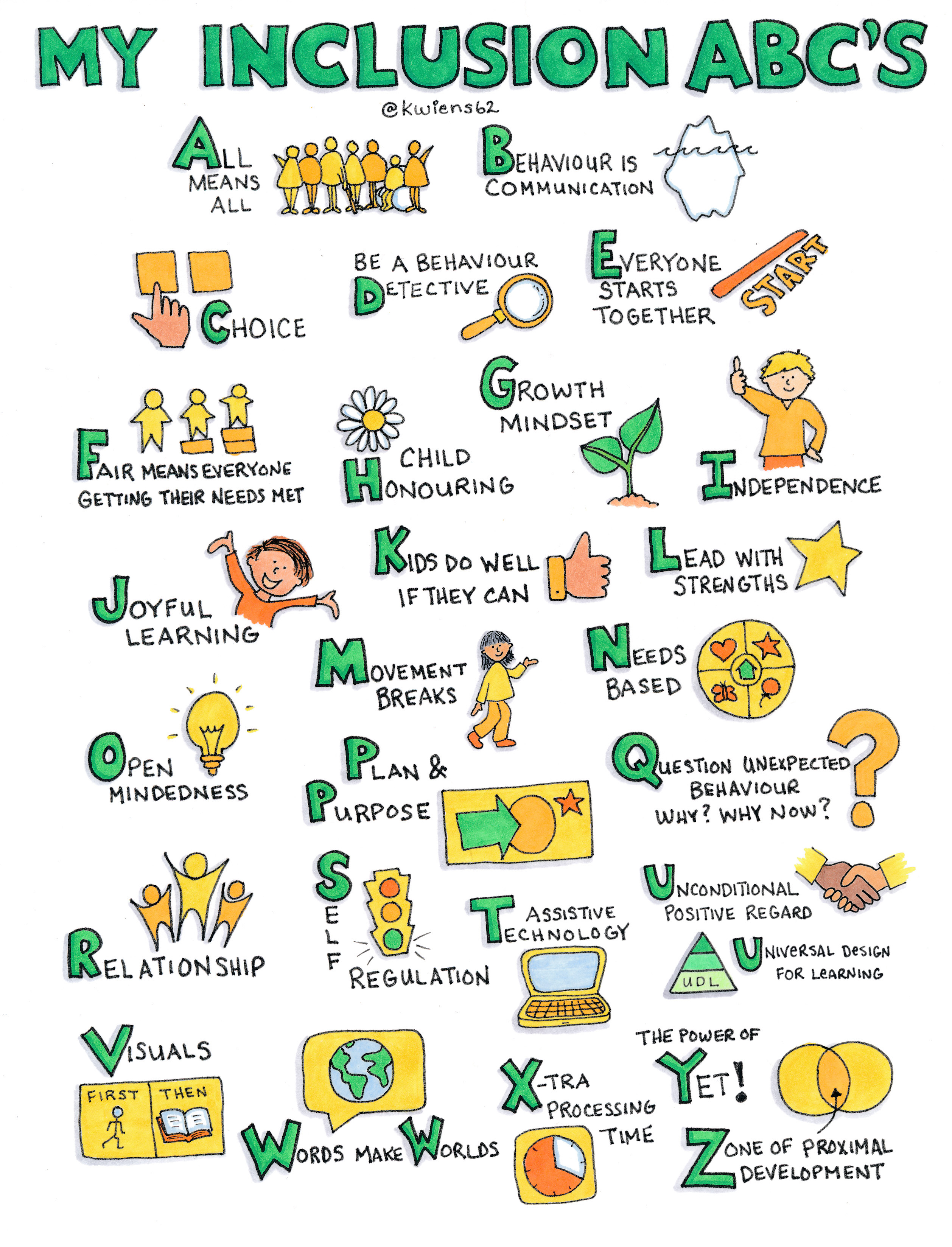
My Inclusion ABC's


Source: northstarpaths.com

Thursday, May 17, 2018

Global Accessibility Awareness Day (GAAD) 2018

Today marks the seventh Global Accessibility Awareness Day (GAAD). As stated on the GAAD website, "The purpose of the day is to get everyone talking, thinking and learning about digital (web, software, mobile, etc.) access/inclusion and people with different disabilities.

In honor of Global Accessibility Awareness Day (GAAD) and to help create more inclusive school and classroom environments,  all educators should be encouraged to explore Microsoft's Educator Community training course, brought to you by Microsoft Innovative Educators who work in Special Education.

Within the training course are a plethora of technologies and resources available to help create more accessible and inclusive learning environments. With a few easy clicks, you can access quality content, efficiently and independently, without having to ask for it. Through the link below you will find 10 ways every educator can make classrooms and learning more accessible for all students with Office 365.

10 Tips to Make Your Classroom More Accessible

Additionally, the infographic below highlights ways students and teachers can provide options to reach those learning through a variety of modalities. Click on the image to download. 

Thursday, October 26, 2017

Thursday, March 16, 2017

The 7 Habits of Highly Effective Teachers Who Use Technology


The 7 Habits of Highly Effective Teachers Who Use Educational Technology Infographic clarifies some of the habits highly-effective educators who utilize learning technologies might possess. In particular, successful teachers that integrated edtech in their teaching...
  • always start with the why
  • are malleable and can easily adapt
  • embrace change
  • share
  • think win-win
  • are thorough and think ahead
  • actively care

To download a copy of this infographic click here!

Source: http://blog.alwaysprepped.com/the-7-habits-of-highly-effective-teachers-who-use-technology/


Wednesday, March 1, 2017

How Audio Promotes Literacy Infographic

If you've been following my blog over the past few months, you probably have read many posts regarding the effectiveness of audiobooks or eBooks. However, if not, I welcome you here and have provided links to several of the articles and infographics previously posted. Click on each title to view the posts. 


To add to my expanding resources in support of audio or eBooks, I wanted to share this incredible infographic created by APA (Audio Publishers Association). The APA is a not-for-profit trade association which focuses on advocacy for audio publishers. APA's goal in creating the infographic was to address the question that arises often:

Have you ever wondered just how much audiobooks can improve early literacy skills? 

Through the visual representation viewers can see at a glance through statistics and researched facts how audiobooks or eBooks can make an impact on vocabulary skills, articulation, reading accuracy, reading fluency and more.

Tuesday, November 22, 2016

The Power of Touch for People with Autism

http://www.lenovo.com/shop/americas/content/img_lib/misc/lenovo-infographic-us-autism-thepoweroftouch-blog.jpg

To print, or zoom in to enlarge the text, click on the link here.

Source: Lenovo

Wednesday, November 9, 2016

Why Audiobooks Work Infographic

Often times conversations arise regarding the effectiveness of audiobooks. The following infographic provided by Learning Ally and We Are Teachers debunks many of the pervasive myths associated with audiobooks and highlights the benefits of implementing them within your home or classroom. 

Why audiobooks work in the classroom #infographic
To access a printable version of this infographic click here! 

Wednesday, October 26, 2016

Special Education 101

The following infographic, designed by USC Rossier Online, provides an glimpse into the background of what special education is, how students are referred for special education services and definitions of commonly used acronyms, such “CSE” (or “Committee for Special Education”). 


Visit the USC Rossier Online website for the full article or the embed code if you want to share this inforgraphic on your own page. 

Source: Special Education 101 was created in support of USC Rossier's masters of teaching program​

Wednesday, August 24, 2016

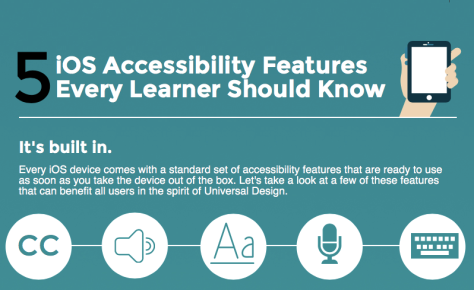
5 Accessibility Features Every Learner Should Know


Screen Shot 2016-05-13 at 4.02.00 PM

It’s built in.
Every iOS device comes with a standard set of accessibility features that are ready to use as soon as you take the device out of the box. Let’s take a look at a few of these features that can benefit all users in the spirit of Universal Design.
Get started by going to Settings > General > Accessibility!

#1: Closed Captions
Closed captions were originally developed for those with hearing difficulties, but they can help you if you speak English as a second language or just need them as a support for improved processing. Captions can also help if your speakers are not working, or the sound in the video is of poor quality.
80% of caption users did not have any kind of hearing loss in one UK study.

#2: Speech
All iOS devices support built-in text to speech with the option to turn on word highlighting. Starting with iOS 8, it is possible to use the more natural Alex voice formerly available only on the Mac. TTS supports decoding, which frees you the reader to focus on the meaning of the text.
Breathe!: Alex takes a breath every once in a while to simulate the way we speak!
  • Learn how to enable and use Speak Selection on your iOS device.
  • Bonus tip!: Don’t want to make a selection first? No problem. Just bring up Siri and say “Speak Screen.” This will read everything on the screen!
#3: Safari Reader
Safari’s Reader is not really an accessibility feature (you will not find it in Settings) but it can help you if you find that you get distracted by all the ads when you are reading or doing research online. It is also a nice complement to the Speech features mentioned above. With iOS 9, you can now customize the appearance of the text and even change the background and font to make it easier to read when you surf the Web.
Left my heart in…San Francisco is a new system font available in iOS 9. It is designed to be easier to read, and is one of the font options available for Reader.
Learn how to use Safari Reader when you surf the Web.

#4: Dictation
Whenever you see the iOS keyboard, you can tap the microphone icon to the left of the space bar to start entering text using just your voice. This can help you get your words down on the page (or is it the screen?) more efficiently.
Try It!: Dictation can handle complex words. Try this: Supercalifragilisticexpialidocious.
Dictation supports more than just entering text. Follow the link for a helpful list of additional Dictation commands.

#5: QuickType and 3rd Party Keyboards
QuickType is Apple’s name for the word prediction feature now built into the iOS keyboard. Word prediction can help you if you struggle with spelling, and it can speed up your text entry as well. Starting with iOS 8, it is now possible to customize the built-in keyboard by installing a 3rd party app. The 3rd party keyboards add improved word prediction, themes for changing the appearance of the keys and more.
17 Seconds: World record for texting. Can you beat it?

Bonus Tips
Struggling to see the screen? – make sure to check out the Vision section in the Accessibility Settings. You can Zoom in to magnify what is shown on the screen,  Invert Colors to enable a high contrast mode, make the text larger with Dynamic Text, and much more.
Sources:

Article written and graphic created by

Tuesday, August 23, 2016

Back to School....Teaching With Tech


Back to School is around the corner for millions of children in the U.S., and for many of those students, with special needs and learning disabilities, the thought of the daily demands of the educational setting can be overwhelming and stressful.

All too often, learning disabilities and special needs are not only challenging for the students, but for parents and educators as well. Thinking outside the box, and coming up with new ways to implement learning is an ongoing, ever evolving process. Educators are beginning to discover that traditional learning methods, including worksheets and textbooks, leave students lacking. Thanks to technology, many students are now learning and retaining more information in ways they have never done before.

Take a look at this infographic from www.masters-in-special-education.com, which outlines how educators and parents are using technology to help children with special needs and learning disabilities.

Teaching With Tech: The Use of Technology in Special Education


 Adapted from the original article written by Avatar Generation 

Wednesday, August 17, 2016

Fair is Not Always Equal....

As a former elementary classroom teacher for many years, I could not agree with this more. The way we instruct our children cannot be with a "one size fits all" approach. I loved this infographic as it visually supports this idea. 
 
http://blog.brookespublishing.com/wp-content/uploads/2015/09/fair-is-not-always-equal.jpg