Pages

Showing posts with label Luis Perez. Show all posts

Thursday, August 25, 2016

SLIDE into Accessibility

  
As stated in an article by NEA regarding UDL (Universal Design Learning), "Educators know that a one-size-fits-all approach does not work when it comes to designing curriculum, instruction, and student assessment. Not all children learn the same way. Not all children express themselves in the same way. And, not all children engage in learning in the same way. Students come to the classroom with a variety of needs, skills, talents, interests, and learning styles."

"For many learners, the typical curriculum is littered with learning barriers and roadblocks. In contrast, a universally designed curriculum is responsive to today’s diverse classrooms and designed from the outset to meet the needs of the greatest number of students. It allows teachers to choose from a menu of tools and strategies embedded in the curriculum and instructional materials."


When working on another blog post regarding accessibility features, I happened upon another fantastic infographic created by Luis Perez. Luis created the "SLIDE" handout/infographic for a seminar at 2016 ISTE conference. SLIDE is an mnemonic device for Styles, Links, Images, Design, Empathy.  

It is important to keep in mind that document accessibility is a complex topic. The following infographic is not intended to be a comprehensive guide, but instead act as a starting point for educators to more seamlessly make their content more accessible. By using these the tips provided as a guideline, educators can work towards creating more inclusive learning environments that allow all learners  access to information.


 "When it comes to making documents more accessible and useful for all learners, small changes can have a significant impact!" - Luis Perez


Article written and graphic created by
Click to access the original infographic

Wednesday, August 24, 2016

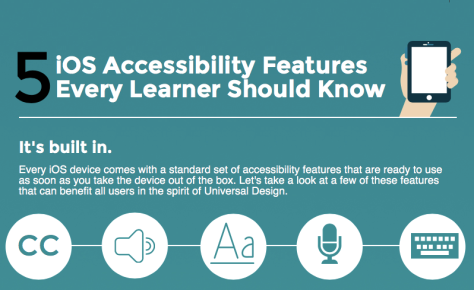
5 Accessibility Features Every Learner Should Know


Screen Shot 2016-05-13 at 4.02.00 PM

It’s built in.
Every iOS device comes with a standard set of accessibility features that are ready to use as soon as you take the device out of the box. Let’s take a look at a few of these features that can benefit all users in the spirit of Universal Design.
Get started by going to Settings > General > Accessibility!

#1: Closed Captions
Closed captions were originally developed for those with hearing difficulties, but they can help you if you speak English as a second language or just need them as a support for improved processing. Captions can also help if your speakers are not working, or the sound in the video is of poor quality.
80% of caption users did not have any kind of hearing loss in one UK study.

#2: Speech
All iOS devices support built-in text to speech with the option to turn on word highlighting. Starting with iOS 8, it is possible to use the more natural Alex voice formerly available only on the Mac. TTS supports decoding, which frees you the reader to focus on the meaning of the text.
Breathe!: Alex takes a breath every once in a while to simulate the way we speak!
  • Learn how to enable and use Speak Selection on your iOS device.
  • Bonus tip!: Don’t want to make a selection first? No problem. Just bring up Siri and say “Speak Screen.” This will read everything on the screen!
#3: Safari Reader
Safari’s Reader is not really an accessibility feature (you will not find it in Settings) but it can help you if you find that you get distracted by all the ads when you are reading or doing research online. It is also a nice complement to the Speech features mentioned above. With iOS 9, you can now customize the appearance of the text and even change the background and font to make it easier to read when you surf the Web.
Left my heart in…San Francisco is a new system font available in iOS 9. It is designed to be easier to read, and is one of the font options available for Reader.
Learn how to use Safari Reader when you surf the Web.

#4: Dictation
Whenever you see the iOS keyboard, you can tap the microphone icon to the left of the space bar to start entering text using just your voice. This can help you get your words down on the page (or is it the screen?) more efficiently.
Try It!: Dictation can handle complex words. Try this: Supercalifragilisticexpialidocious.
Dictation supports more than just entering text. Follow the link for a helpful list of additional Dictation commands.

#5: QuickType and 3rd Party Keyboards
QuickType is Apple’s name for the word prediction feature now built into the iOS keyboard. Word prediction can help you if you struggle with spelling, and it can speed up your text entry as well. Starting with iOS 8, it is now possible to customize the built-in keyboard by installing a 3rd party app. The 3rd party keyboards add improved word prediction, themes for changing the appearance of the keys and more.
17 Seconds: World record for texting. Can you beat it?

Bonus Tips
Struggling to see the screen? – make sure to check out the Vision section in the Accessibility Settings. You can Zoom in to magnify what is shown on the screen,  Invert Colors to enable a high contrast mode, make the text larger with Dynamic Text, and much more.
Sources:

Article written and graphic created by