Pages

Monday, January 16, 2017

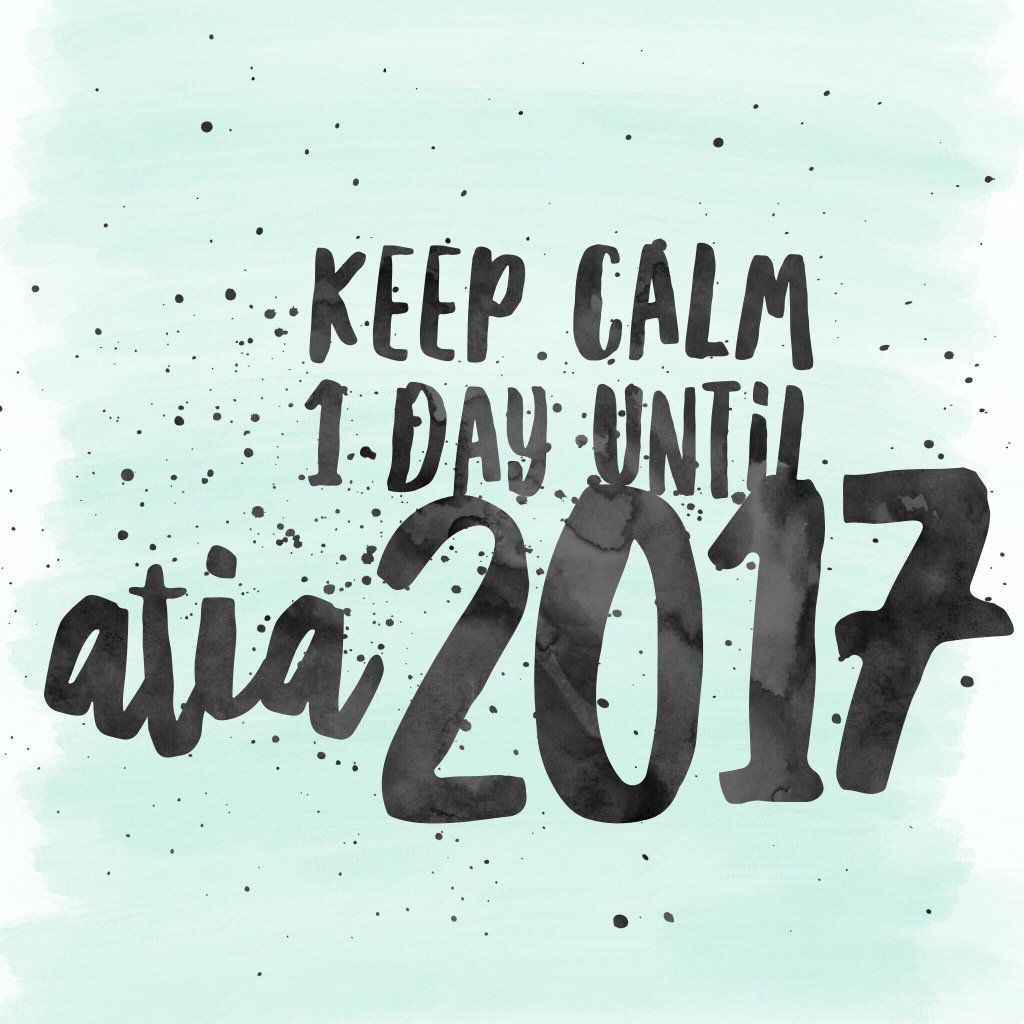
1 Day Until ATIA 2017


Can you tell I'm excited? Tomorrow is the first day of the ATIA 2017 pre-conference sessions. I will be joining Mike Marotta, Brian Wojcik, Kelly Fonner and Mike Cole for two full days of AT Bootcamp training. I will be sure to share what I've learned with all of you too, so stay tuned and check in! If you have questions you want me to ask, comment below and I'll do my best to have them answered. 

Wednesday, January 11, 2017

Assistive Technology at a Glance

To access the full article, click here: 
For many children with reading disabilities, including kids with dyslexia, assistive technology (AT) can help to remove barriers and reduce daily academic struggles. With the field of technology always evolving, it almost seems like new technologies become available each day. This can be both challenging and overwhelming for parents and educators who are unsure of which technologies would work for their student or child. The big question is....Where should I begin? To help provide a starting point, the team at Understood.org has created a guide featuring AT tools for reading and tips on where to locate the tools. 

Types of Assistive Technology Tools for Reading

Here are some of the most helpful AT tools for reading.
  • Text-to-speech (TTS) lets kids see text and hear it read aloud at the same time. To use this tool, kids click on or highlight words, and the words are read by a computer-generated voice. TTS can be used with books, emails, web pages and any digital text. It can also be used to convert text files into audio files.
  • Audiobooks and digital TTS books allow kids to hear books read aloud. Some kids like to read along with the book so they can see the words at the same time. Audiobooks are read by human voices. Digital TTS books are created with TTS, and use computer-generated voices.
  • Optical character recognition (OCR) reads aloud text from images and pictures. Kids with reading issues can use OCR by taking photos of worksheets and other documents, and even objects like street signs. They can also scan documents in. OCR can read words from pictures on web pages (such as image files, like JPG). Like TTS, OCR uses computer-generated voices.
  • Graphic organizers are visual representations, like diagrams and mind maps, of ideas and concepts. Kids can use graphic organizers to take notes while reading, which can help with comprehension. Graphic organizers can be digital or pen and paper.
  • Annotation tools let kids take notes and write comments while reading. This can make it easier to retain information. Annotation tools can be found on certain software or apps, or they can be traditional pens, markers and sticky notes.
  • Display control allows kids to control how text is displayed. When reading on a screen, they can change the font, font size, color and spacing of text. Kids can also mask or cover parts of the screen to lessen distractions while reading. When reading on paper, they can use a simple adaptive tool, like a plastic reading guide. Some books use large print or special fonts. Or they may replace certain words with images.
  • Dictionaries and thesauri allow kids to look up words they don’t understand when reading. A picture dictionary is a popular tool that uses images to define words. And a talking dictionary reads definitions aloud.

Where to Access Assistive Technology for Reading

Some reading tools are “low-tech.” There are traditional classroom tools like sticky notes and highlighter pens. You can typically find them at any store that sells school supplies.
Your child’s school or teacher may be able to provide certain adaptive tools, like reading guides or special worksheets. You can check with the school or local library to access certain stand-alone technology tools, like books on tape or CD (kids will need audio player to use them). You may also want to learn about where to find free audiobooks and digital TTS books.
Today, however, most AT tools for reading are used on one of three computer platforms for assistive technology:
Learn more about assistive technology. Find out whether schools will pay for reading tools for your child. And get an expert’s advice on the first assistive technology to try for your child.

Tuesday, January 10, 2017

The countdown to ATIA is on...


It's only one week until the ATIA 2017 conference begins and I'm in the process of planning which sessions I want to attend, in addition to the pre-conference sessions I already selected. There are hundreds of sessions to choose from and thankfully the ATIA 2017 app is making this planning process much easier. Whether you're attending or just curious in what ATIA 2017 is all about, definitely download the easy to use app and begin planning your week. 

Get It All at Your Fingertips or Switchtips

Check out this incredible tool to help you get prepared for ATIA 2017 and get all the conference content in one simple app. The mobile app is the most up-to-date resource for conference attendees and is available for both iOS and Android users.
 
ATIA 2017 Mobile App
Get prepared for ATIA 2017 using the app to:
  • Search sessions
  • Create your own schedule
  • Contact speakers
  • Check out ATIA exhibitors
While you're in Orlando, use the app to:
  • Modify your schedule
  • Find locations
  • Get handouts
  • Take notes
  • Tweet your experiences - #ATIA17
  • Get notifications for any updates or changes
  • Fill out session evals and more!
The ATIA 2017 conference app is a must for everyone attending!

How to Download the App:

Open the Apple App Store and enter "ATIA 2017" into the search bar.
iPad Users: Be sure to select "iPhone Only" when searching for the app on your iPad.
 
Google Play Store
Open the Google Play Store and enter "ATIA 2017" into the search bar.

 After downloading the app from the store, follow these steps:
  1. Got to "Meetings."
  2. Select the 2017 App.
  3. Click "Load."
  4. Go to "My Planner" and choose "Sign Up."
  5. Go to "Home" to review sessions, speakers, and exhibitors. "Bookmark" them to add them to "My Planner."
Questions or need help? Email marketing@atia.org

Source: ATIA 2017

Monday, January 9, 2017

Motivational Monday


Sunday, January 1, 2017

Ringing in 2017


Saturday, December 31, 2016

Happy New Year!


Monday, December 12, 2016

Season's Greetings

 I look forward to all that the new year will bring and to sharing the many resources I come across with all of you! Happy holidays and New Year!