Pages

Wednesday, July 20, 2016

Summer Reading: The Practical (and Fun) Guide to Assistive Technology in Public Schools: Building or Improving Your District's AT Team

As I shared last week, I have been setting aside time this summer to read for both pleasure and to enhance my professional practice. In addition to the book I posted about last week, I am also currently reading The Practical (and Fun) Guide to Assistive Technology in Public Schools: Building or Improving Your District's AT Team by Chris R. Bugaj and Sally Norton-Darr. This book provides an excellent overview of the process of forming Assistive Technology teams and the process when working with the students.

Book Overview...
Assistive technology (AT) is a serious topic-providing students with special needs tools and strategies to aid in their learning-but reading about it doesn't have to be boring! In The Practical (and Fun) Guide to Assistive Technology in Public Schools, authors Christopher R. Bugaj and Sally Norton-Darr throw in a few pirates, monsters, and monkeys to keep you engaged but don't sacrifice the tips, strategies, and insight that will help improve your school or district AT program. From setting up a stellar team to consultations and evaluations, and from implementation to assessing success, this guide presents detailed advice and ideas to provide AT services that effectively and efficiently help students. The nuts and bolts of each area are presented in a practical way (with amusing metaphors thrown in for good measure) so that you can directly apply whats in the book and see tangible results.

Educators new to AT will find the step-by-step layout helpful in building an AT team and procedures, while seasoned AT professionals will find value in the fresh ideas on reducing paperwork, expanding an AT team, and strategies for considering AT for all students. The analogies, examples, and sometimes even rhymes in this enjoyable book will leave you excited to implement new ideas and improve your AT program, benefiting students, parents, teachers, schools, IEP teams, and of course, AT professionals.

Topics include:
-assistive technology
-special needs

About the Authors....
Christopher R. Bugaj, (follow on Twitter @attipscast) an assistive technology trainer, is a founding member of the AT team for Loudoun County Public Schools in Virginia. In addition to his work in Loudoun County, he also works as an adjunct professor for George Mason University and is the host and producer of the award-winning podcast series A.T.TIPScast, a series about implementing AT in public schools. Bugaj holds a master of arts in speech pathology from Kent State University and presents at educational conferences throughout the United States.

Sally Norton-Darr, (follow on Twitter @snortondarr) is an assistive technology trainer for Loudoun County Public Schools and a nationally certified speech-language pathologist. After earning degrees from Pennsylvania State University, she went on to work in a variety of settings, including public schools in Utah and Virginia, for the state of New Jersey as a director of speech therapies, and in private practice. Norton-Darr presents on high- and low-tech AT topics both nationally and regionally.

Book Cost: 
The book is currently selling on Amazon.com both as a paperback and digital book. Costs vary depending on the format in which the book is purchased and the condition of the book.

Pick up or preview your copy of this amazing resource from Amazon.com by clicking here!

Disclaimer: I am in no way being asked to promote either of these books or being endorsed....I just like to share a valuable resource when I stumble upon one. 

Monday, July 18, 2016

Motivational Monday


Friday, July 15, 2016

Friday "Appy" Hour: Claro ScanPen

Friday "Appy" Hour: Claro ScanPen App


This year I was introduced, through the ATIA conference, to a new text-to-speech app called Claro ScanPen, developed by Claro Software. Claro Software is a world reknowned company known best for their development of assistive software for students with learning disabilities such as dyslexia, visual processing issues, working memory deficiencies and other language-based delays and disabilities.
How it works...
ScanPen, is an app that is used in combination with the camera on your Apple device to scan a photo of printed text. Using the built in OCR (optical character recognition)tool, the scanned text is then read aloud using the built-in text-to-speech feature. The OCR tools of the app are impressive due largely in part to the top-quality ABBYY OCR engine. Another added perk of this app is that it does not require a Wi-Fi connection making it accessible virtually everywhere!

This app is simplistic in it's functionality making it easy for even the youngest users or those less adept to technology to learn quickly.

Features...
ScanPen_MP1ScanPen lets you snap a photo of a page of printed text and then reads it back to you using your chosen voice and swipe settings. When you first open the app, the camera is active and ready for taking a picture and there are just 3 buttons on the screen for clicking – super simple, right? The gear icon at the top right will take you to some of the settings and options (we’ll get to those later), the circle centered at the bottom takes the photo (as you’d expect), and the icon at the very bottom right will let you choose an existing photo from an album or gallery on your device.

ScanPen Selection Modes...

ScanPen_MP4Once you’ve taken or selected your picture, you just swipe your finger across the text to hear it read aloud in real time. The default voice is the standard iOS voice for your country (USA, UK, etc.) and the default swipe/read setting (labeled ‘selection modes’ in the settings) is to read by line. Reading by line means that when you swipe across a part of any line of text, ScanPen will read back any of the lines you’ve touched starting from the very left side of the page and continuing to the end of that line. Keep in mind though, ScanPen doesn’t care if that line contains whole sentences or not. It will read complete lines of text from left to right regardless of whether those points are the beginnings or ends of sentences.

The other selection modes are ‘All’ and ‘Words’. Choosing the ‘All‘ setting will tell ScanPen to read the entire page from beginning to end in response to any swipe anywhere on the screen of text. Choosing ‘Words‘ will tell ScanPen to read just those words that are specifically touched by your swipe. Again, please be aware that when you swipe by word, ScanPen does not disseminate if your swipe covers a full sentence or crosses down into multiple lines. The Words selection mode does exactly as it is designed to do.
Additionally, upon initially using the app, the voice and speaking rate will be set to a default. Both of these can be adjusted. To change the voice, you can purchase, through in-app purchase, additional voices that suit your needs.

Students more accustomed to text-to-speech technology will be able to start at a much faster speaking rate and probably even increase from there over time. In fact, people who use text-to-speech products really regularly will quite often listen at a rate that sounds almost indecipherable to those of us with less experience. This allows students using AT products to get through text at a speed similar to that which their non-disabled peers read naturally.

 Versatility Within the Classroom and Home Settings...

An app like ScanPen, which is a lightweight OCR and text-to-speech tool, means that students who might have shied away from higher education or loftier career goals in the past due to their disability now have the confidence to reach higher than ever before. Students who have learning disabilities that impact their ability to read with independence and confidence now are provided a "secret weapon". Not only can students who are below level in reading now read grade level materials presented, but they can also approach grade level word problems which cause great difficulty for many struggling readers.

In addition to being a great go-anywhere tool for people with reading difficulties, ScanPen can also be used by those with little to no vision at all. For example, a user who is blind could use VoiceOver, which is already built-into iOS devices, to snap a photo of a piece of text and then navigate the menus to set the highlight to “all” to trigger ScanPen to begin reading the scanned text.

OCR and text-to-speech tools like ScanPen are quickly becoming nearly indispensable to students with dyslexia and other reading disabilities – especially within the upper grade levels. The students, families and teachers I have shared and implemented this app with are sure to find a great value in this app as a diagnostic and everyday support tool.

To learn more about Claro ScanPen, visit the Claro App's website. If you already own this app and are looking for more information, watch the video below that demonstrates how to use this app in line mode.


Cost...

  • The app costs $6.99 for a single license
  • For bulk purchases or purchases made through MDMs, you can purchase the app through their VPP!

You can download Claro ScanPen on the App Store now!


**Information from this post was adapted from the article "A Review of Claro ScanPen by Michelle  Paley.**

Thursday, July 14, 2016

Summer Reading: Using Technology to Engage Students with Learning Disabilities by Billy Krakower and Sharon LePage Plante

Summer is in full swing and I have finally set aside time at night to do some reading. Every summer I chose books for pleasure and books that enhance my professional practice. This blog post will highlight the first of two professional books I have decided to read this summer.

The book I am focusing on for this post is Using Technology to Engage Students with Learning Disabilities (Corwin Connected Educator Series) by Billy Krakower and Sharon LePage Plante. Below is the description provided by Amazon.com.


Description...

Leverage technology to engage students with learning disabilities!
Harness the power of today’s technology to improve learning and engagement for students with learning disabilities.  By engaging students with learning disabilities using the technology already at your fingertips, you’ll see your students begin to thrive and grow in exciting new ways. In this volume in the Connected Educators Series, you’ll discover:
  • New ideas for using assistive technology to teach core subjects and study skills
  • How to build positive opportunities for students to show what they know
  • Tools to provide better content accessibility
  • How to help students connect and share through technology tools

About the Authors...

Billy Krakower (@wkrakower) is a full-time teacher at Woodland Park Public Schools in Woodland Park, New Jersey, where he has taught computers and special education to grades 3 and 4 for over eight years. He is the Chief Financial & Event Officer for Evolving Educators, LLC (evolvingeducators.com). Billy co-moderates two weekly Twitter chats, #NJed chat and #satchat (for educational leaders). He co-hosts “SatChat Radio,” a weekly show interviewing educators on BAM Radio Network and available on iTunes. Billy is one of the lead organizers of edcampNJ and edcampLeadership North NJ. He is on the teacher advisory board for ReadWorks. Billy is a 2014 ASCD Emerging Leader, and a member of the NJASCD Executive board and serves as the Technology Committee Chair. He also served as co-director of NJ-ASCD Northern Region (Fall 2013 - June 2015). He has presented at more than 20 local and national technology conferences on topics including Twitters & You, The Science Behind a Mystery Location Call, and Connecting Beyond the Classroom.
Billy has an Advance Certificate in Educational Leadership and a dual Masters Degree in Special Education & Elementary Education from Long Island University. Billy is a Google Certified Educator and an Edmodo Certified Trainer. You can read more about Billy, his awards, and his presentations at www.billykrakower.com. He is passionate about helping every child and adult enjoy and learn using technology tools in easy, fun and empowering ways.


Sharon Plante, (@iplante) an educator with over 19 years' teaching experience in special education, has been an educator at Eagle Hill-Southport for over eleven years, as well as currently serving as Director of Technology. She holds a B.A. in Child Development from Connecticut College, a M.Ed in Special Education from George Mason University, and a certificate in Administration and Leadership from Sacred Heart University. Sharon utilizes her educational training and love of technology to engage students with learning disabilities in building their skills and finding success. She has presented at Everyone Reading, EdRev, Edscape, ATIA (Assistive Technology Industry Association), IDA (International Dyslexia Association), and New York Chapter of ALTA (Academic Language Trainers Association), as well as at several Edcamps, on using technology to empower the dyslexic/LD learner. Sharon is the 2015-2017 chair of the Connecticut Association of Independent Schools Commission on Technology, as well as a member of the board for Smart Kids with Learning Disabilities. Additionally, she hosts a podcast for Bam Radio Network on Learning Differently bringing together the voices of those working in the many aspects of special education and blogs at iplantes.com. Sharon is a co-founder of #edtechchat, a weekly twitter chat and podcast. Additionally, she is the co-organizer of EdCampSWCT and EdCampCAIS.
Pick up your copy from Amazon.com by clicking here!

Disclaimer: I am in no way being asked to promote either of these books or being endorsed....I just like to share a valuable resource when I stumble upon one.

Wednesday, July 13, 2016

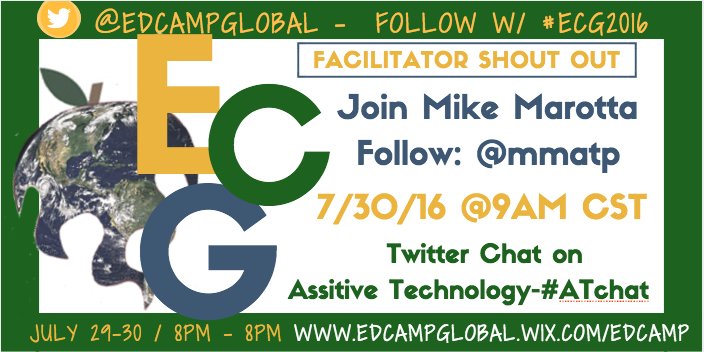
Ed Camp Global: AT Twitter Chat

Looking to learn more about Assistive Technology in education?
Join Mike Marotta (Follow on Twitter @mmtap) on July 30th at 9am CST on Ed Camp Global


Click here to check out the full

Monday, July 11, 2016

Motivational Monday Quote


Friday, July 1, 2016

Friday "Appy" Hour: GoWorksheet Maker App

Friday "Appy" Hour: 

GoWorksheet Maker iPad App

This incredible app, created by Attainment Company, allows teachers and parents to quickly convert printed worksheets into customizable, interactive activities on an iPad.

Teachers, do you have a stack of printed worksheets in your classroom that you’d love to use, but some of your students struggle with pencil-on-paper activities? Parents, is completing homework with pencil and paper a struggle each night.

GoWorksheet Maker easily solves this problem by converting printed worksheets to customizable digital forms on an iPad. Now all your students or children can read and answer worksheet questions.

GoWorksheet Maker has full editing ability for teachers to use, while GoWorksheet is a free app that students use to work on digital worksheets.

How it works....
  • Take a photo of the printed worksheet or open an image or PDF file in the app. 
  • Then customize the digital worksheet to your student’s needs.  
  • Create text fields, word banks, and drag-and-drop text or image answers.
  • Supportive auditory options can also be added to text or image answer choices. 
  • The app uses optical character recognition (OCR) and text-to-speech to read selected text aloud. 
  • Additional auditory instruction or student prompting can be added. 
  • Students answer questions by...
    •  selecting from word banks
    • typing on a keyboard
    • tapping to select from multiple choices
    • dictating with Siri
    • circling or drawing connecting lines with a draw tool or 
    • dragging answer choices.


GoWorksheets can be shared through AirDrop, email, print, any cloud storage set up on the iPad (Google Drive or Dropbox), or saved to Photos. Once a worksheet is on the iPad, all your students can work with the same classroom material. Requires iOS 9.1 or later.

Features:
  • Allows you to customize ANY worksheet by uploading a document or taking a picture with your iPad
  • Can automatically convert worksheet text to speech
  • Accommodates multiple choice, fill-in-the- blank, and even recorded auditory answers
  • Easy storage and sharing of digital worksheets


Cost:
  • The app costs $19.99 for a single license
  • $75 for 5 licenses
  • $200 for 20 licenses
  • For bulk purchases or purchases made through MDMs, you can purchase the app through their VPP!

To learn more visit the Attainment Company's website. If you already own this app and are looking for more information, click the link to access the GoWorksheet User Guide!